Creating a New Customer with Contacts and Locations
Creating a New Customer with Contacts and Locations
1. Navigate to https://dieseltms.com/home/index
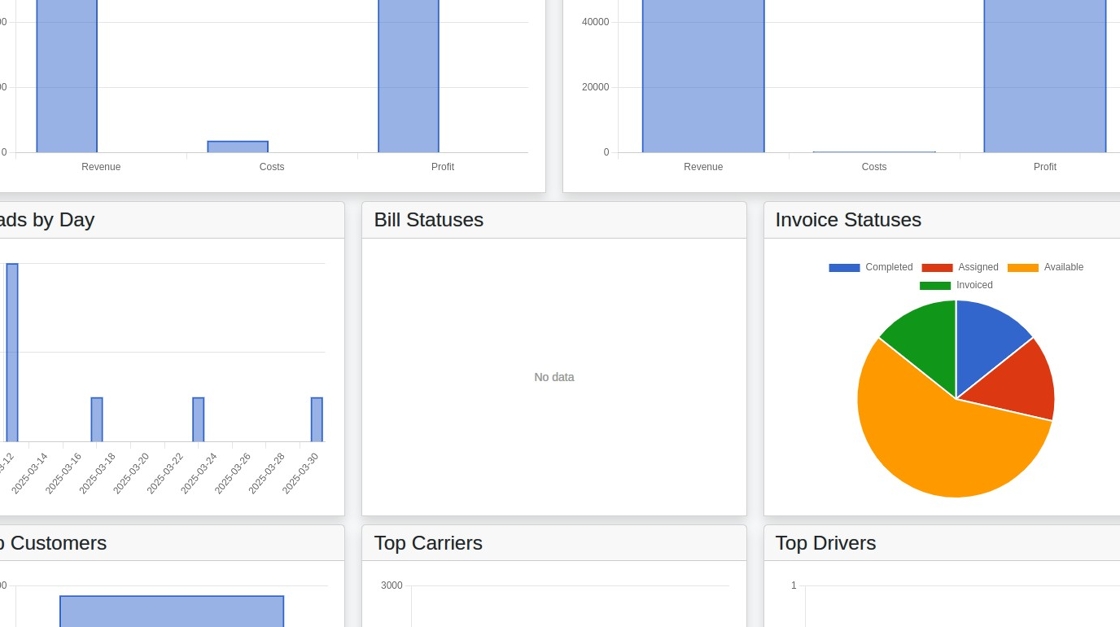
2. Click "Customers"
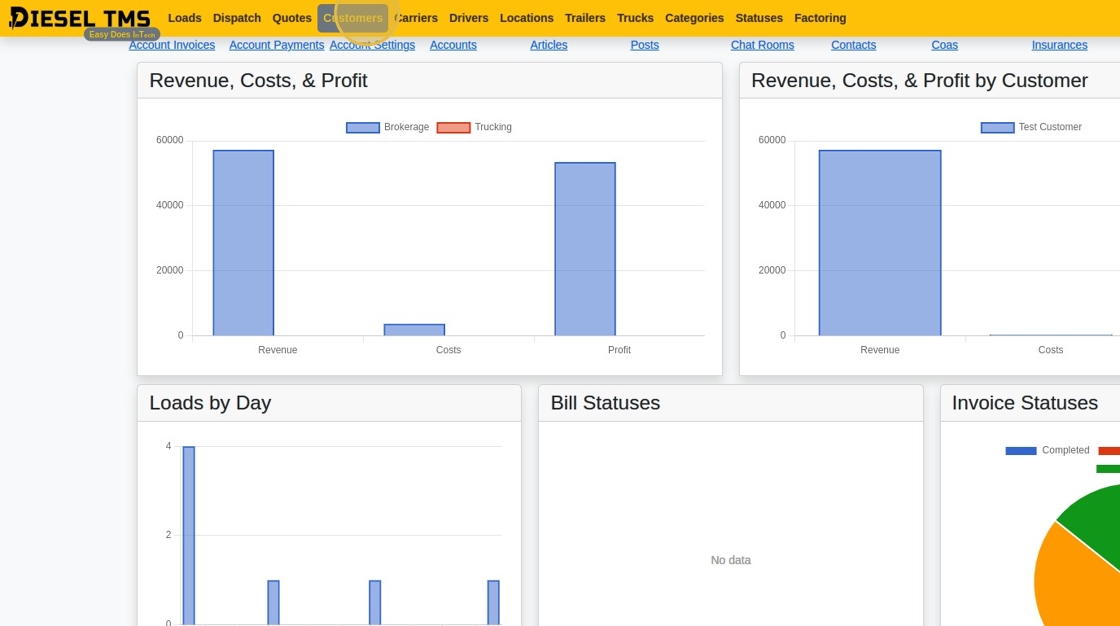
3. Click "New"
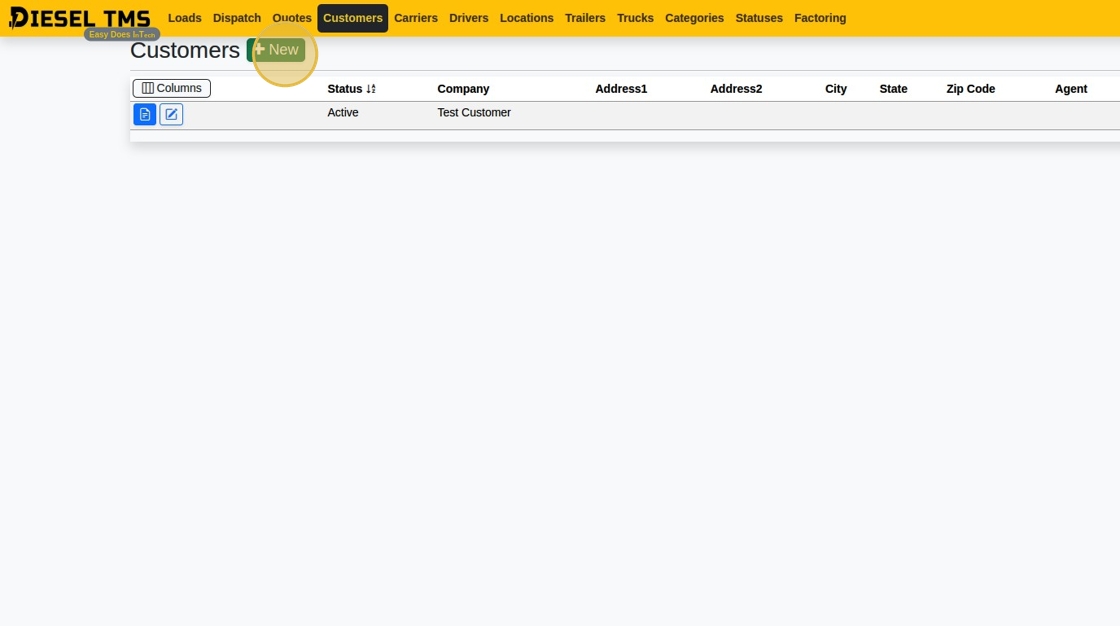
4. Click the "Company" field.
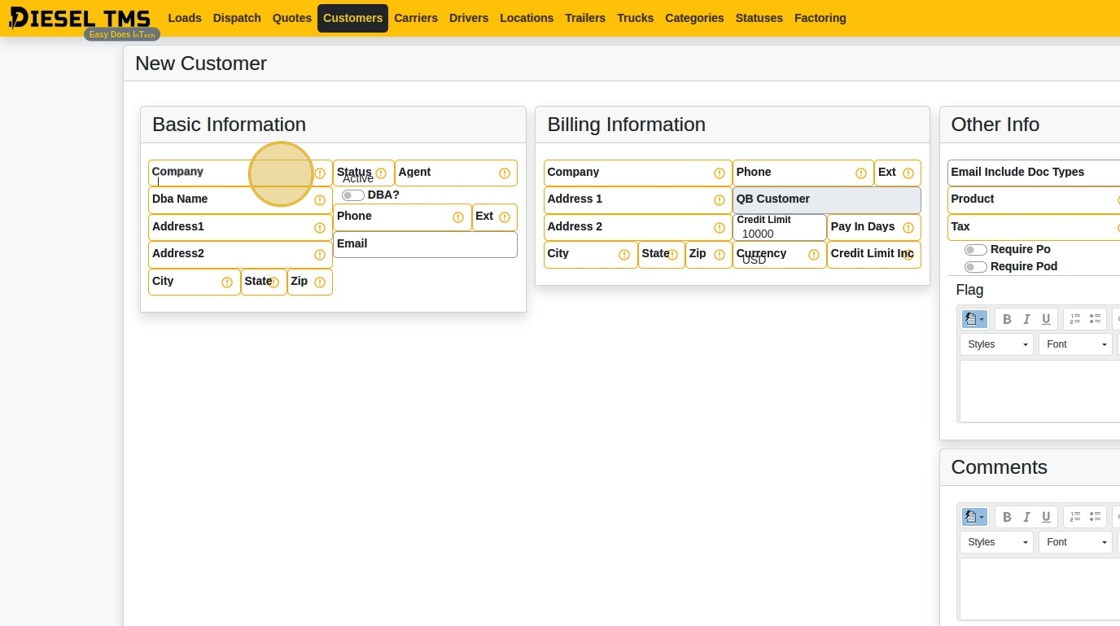
5. Type "Test Customer 3"
6. Click here.
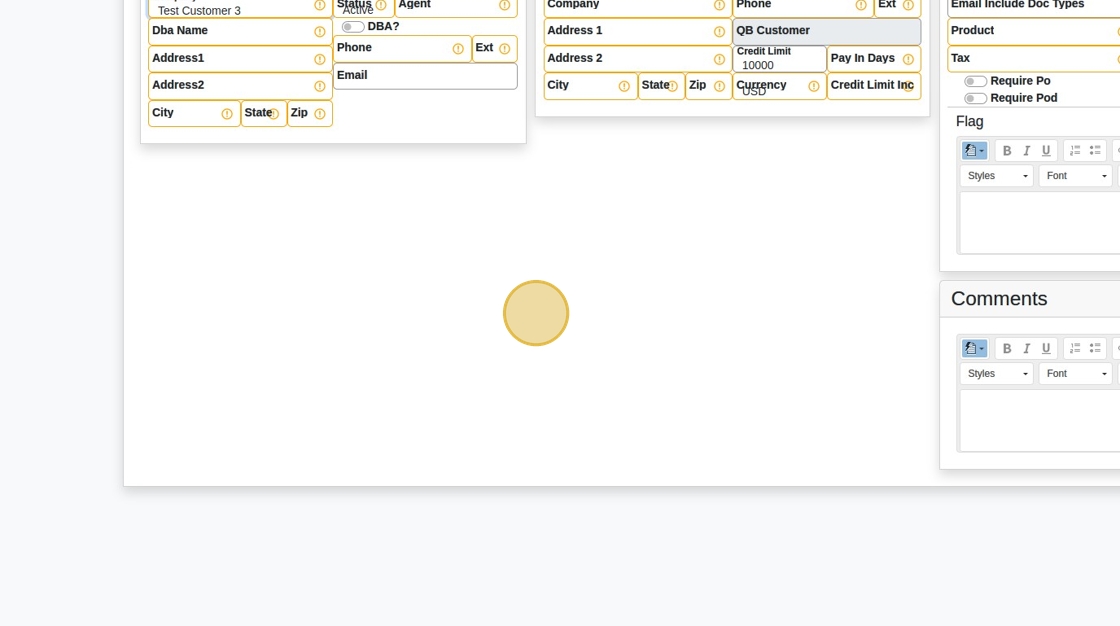
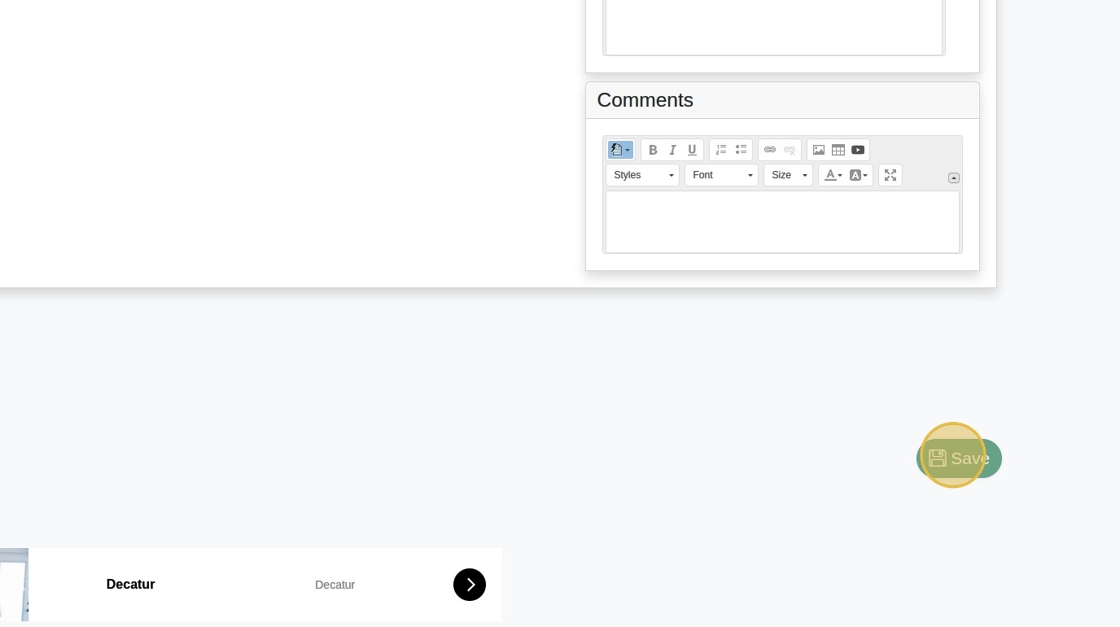
7. Click "Save"
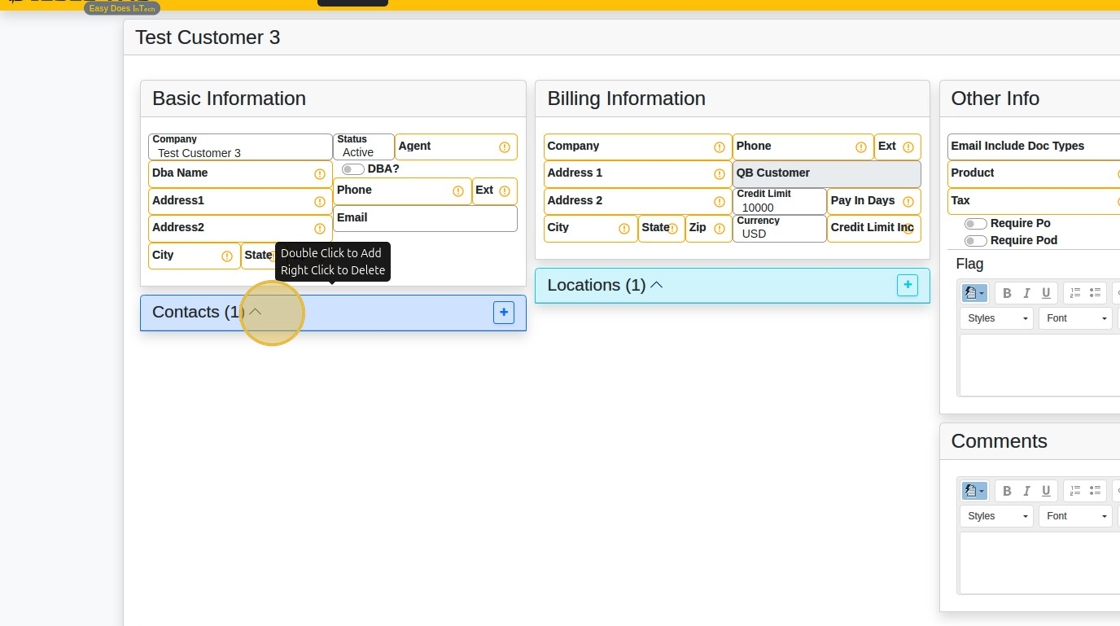
8. Click "Contacts (1)"
9. Click the "Name" field.
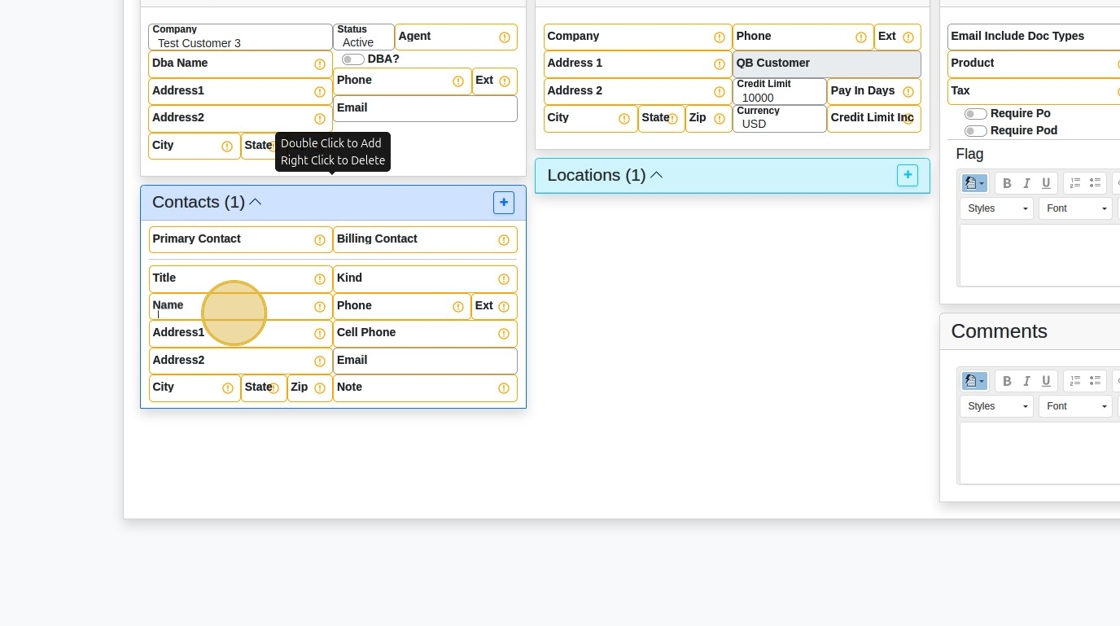
10. Type "Bob"
11. Click here.
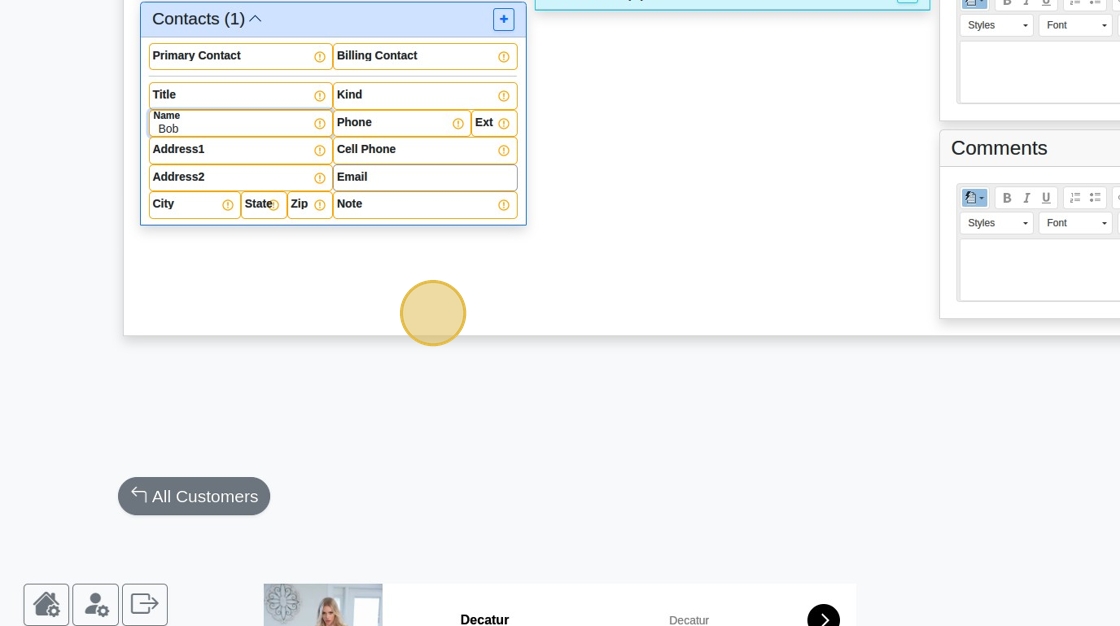
12. Click "Locations (1)"
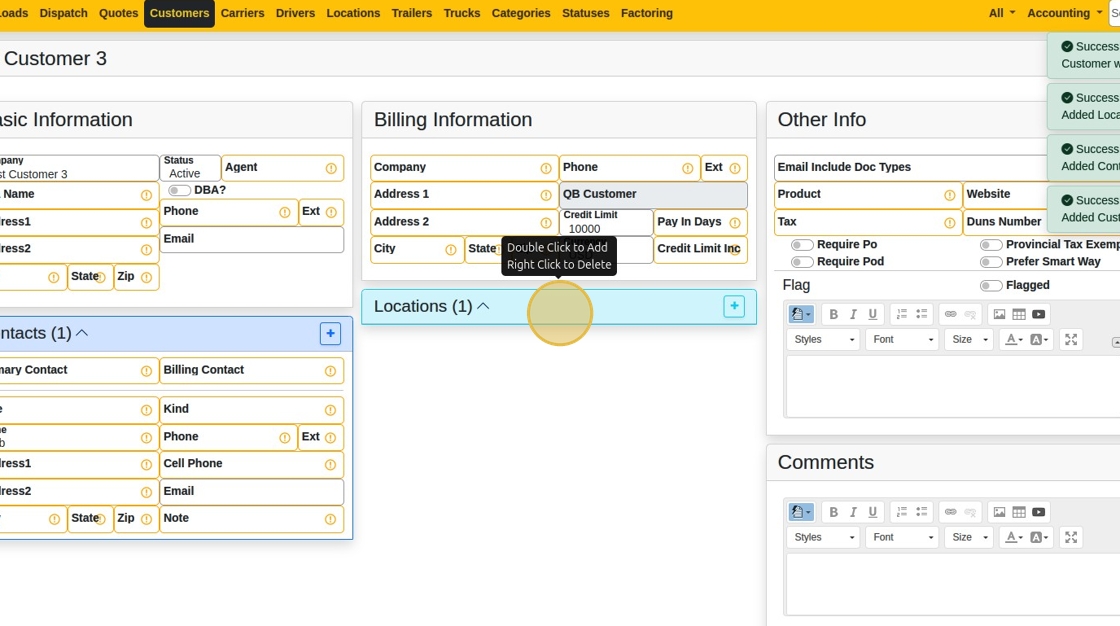
13. Click the "Name" field.
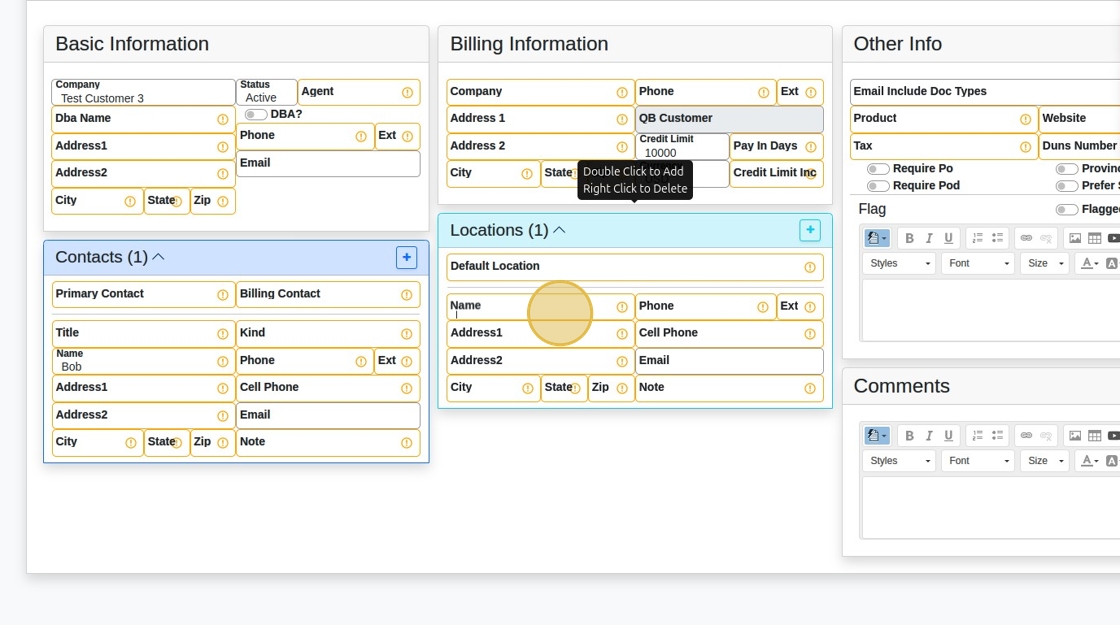
14. Type "Shipper Place"
15. Click here.
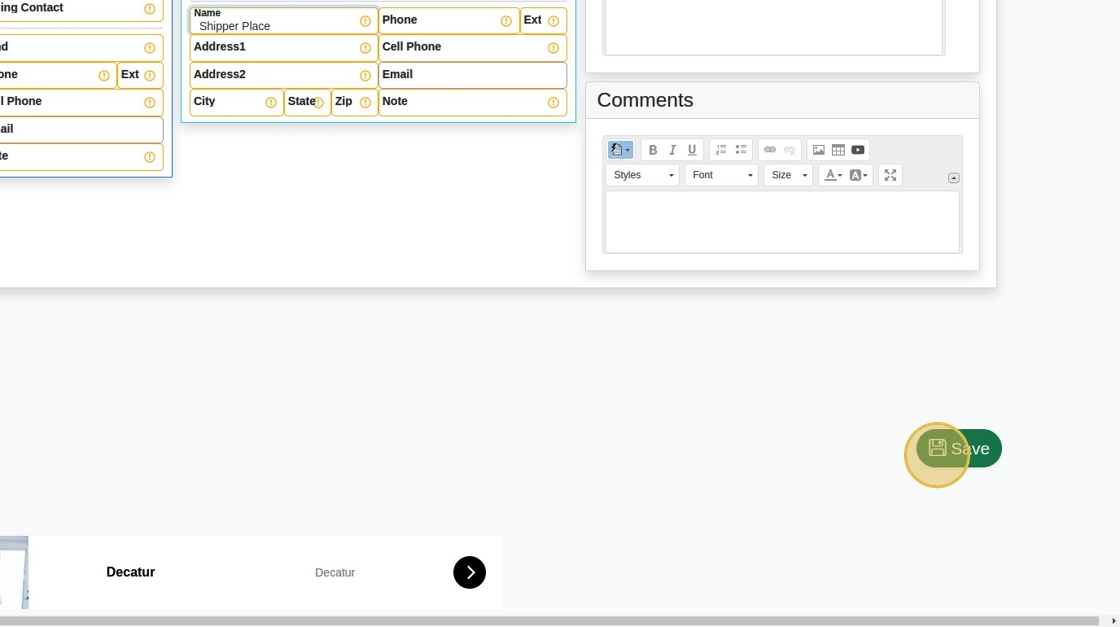
16. Double-click here.
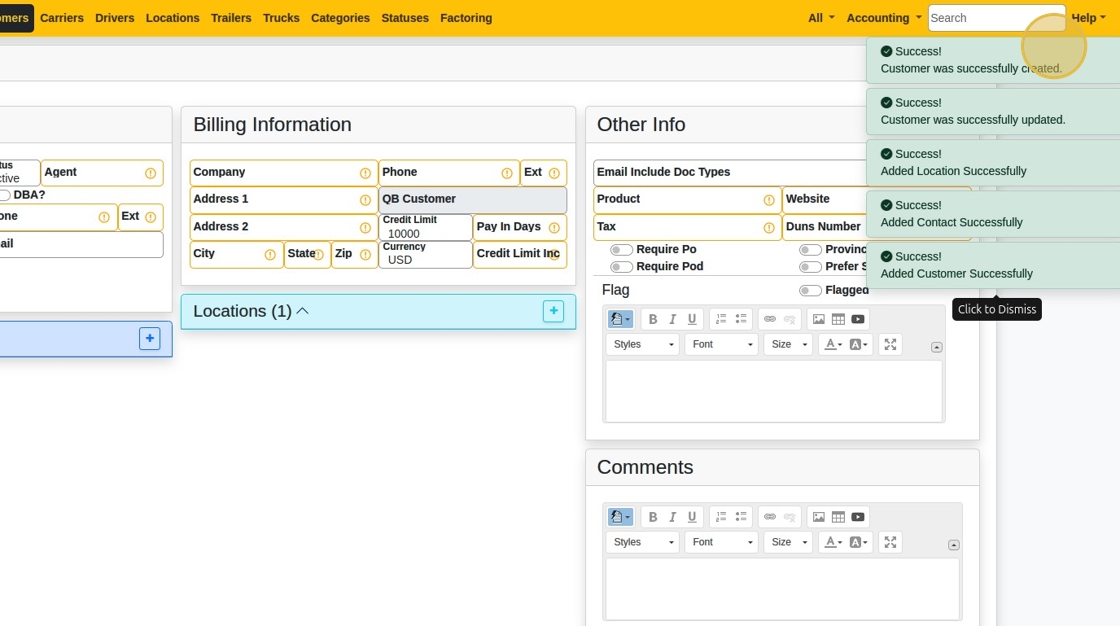
17. Click this button.
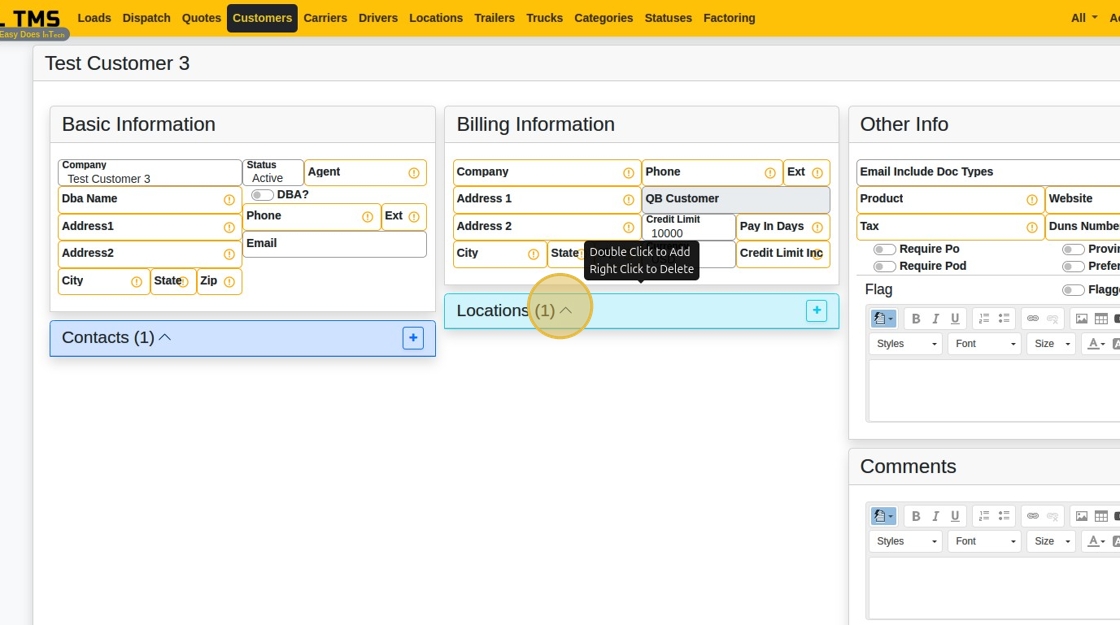
18. Click here.
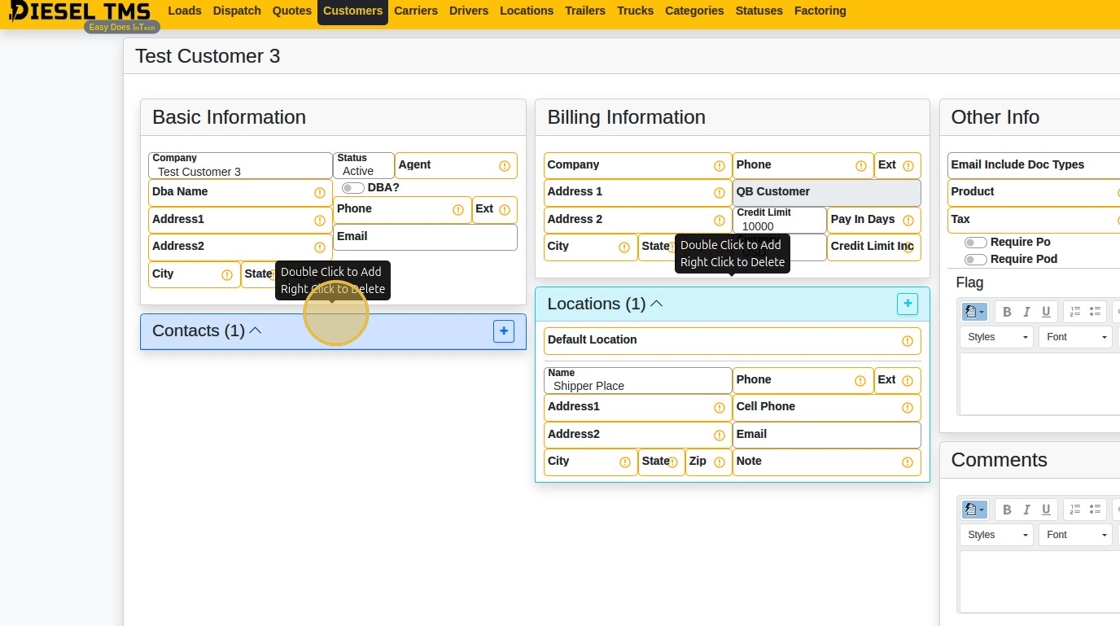
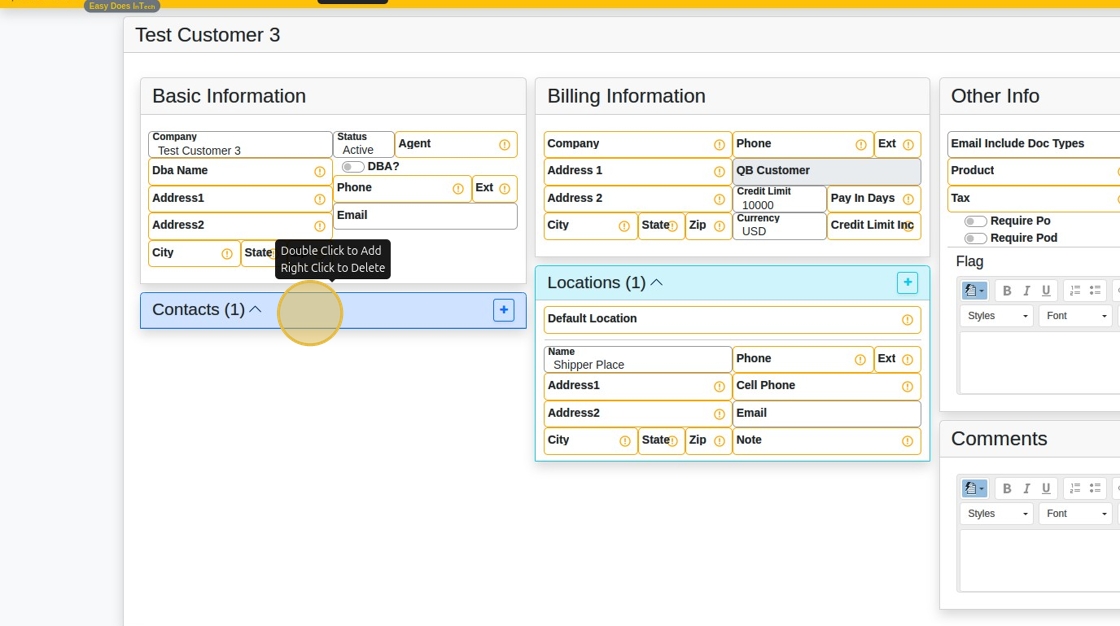
19. Click "Contacts (1)"
Related Articles
Creating a New Carrier Profile and Insurance Details
Creating a New Carrier Profile and Insurance Details 1. Navigate to https://dieseltms.com/carriers/new 2. Click the "Dba Name" field. 3. Click the "Company" field. 4. Type "Best Carrier, LLC" 5. Click the "MC #" field. 6. Type "456789 [[tab]] 987654" ...Creating a PDF Template (Part 1)
Creating a PDF Template (Part 1) Starting with a copy of a Rate Con Template, Create an Invoice Template by making changes the the former. 1. Navigate to https://dieseltms.com/pdf_templates and open the PDF Template you'd like to work with. (Or copy ...Creating a PDF Template (Part 2)
Creating a PDF Template (Part 2) Alert: STOP! If you haven't yet read Part 1, please go back and start there. Otherwise, this will be much more difficult. ...New 150+ Point Maintenance Checklist
Just wanted to let everyone know about a handy feature that makes it easy to record maintenance records for your trucks. One of the best features about it is that it saves a draft every time you make a change. So, if you have to take a call from a ...Building a Load & Sending a Rate Con
Building a Load & Sending a Rate Con This guide offers a straightforward, step-by-step approach to building a load and sending a rate confirmation using Diesel TMS. 1. Navigate to https://dieseltms.com 2. Click "Loads" 3. Click "New" 4. Select a ...