Creating a PDF Template (Part 2)
Creating a PDF Template (Part 2)
Alert: STOP! If you haven't yet read Part 1, please go back and start there. Otherwise, this will be much more difficult. https://scribehow.com/viewer/Editing_PDF_Template_for_Invoice_Creation_\_-9x_BvlBRE6XAjIji6FKzA?stepLimitReached=true
1. Next, we're going to demonstrate how to do "loops", aka, when there are multiple things that might need to be included, but we don't know how many in advance
First, let's change all of the "Bill" line items to "Invoice" Line Items, as shown below:

2. Continuing to add the additional information we need for the Invoice Line Items.

3. Next, let's copy the Description row and paste it below the text [[{{begin}}]]. This row is going to be used for our line items.
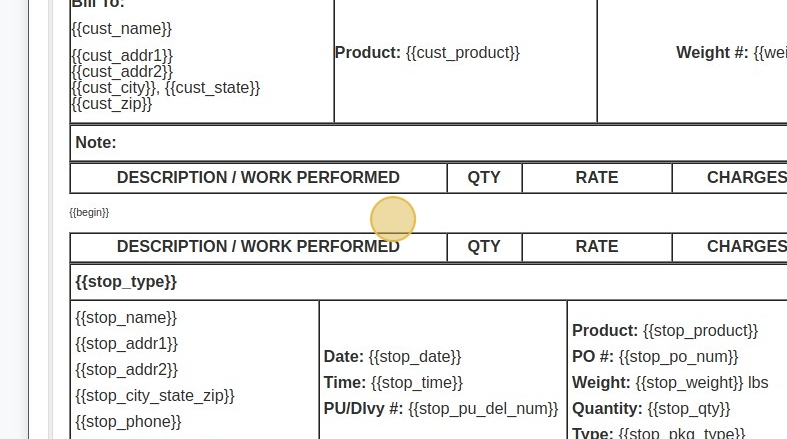
4. Enter the Insert With values as shown in the next few steps. (Insert "[[c_name]]")
Replace QTY with c_qty (with curly braces, as shown)
Type "[[c_qty]]"
Click "RATE"
Type "[[c_amount]]"
Click "CHARGES"
Type "[[c_total]]"
Double-click "[[c_total]]"

Tip: Remember, you can make things bold by pressing [[ctrl]] + [[b]]
5. In order for a row to loop / repeat, it must be between the [[{{begin}}]] and [[{{end}}]] tags, as shown below. This is very useful for multiple line items, or multiple stops, etc.
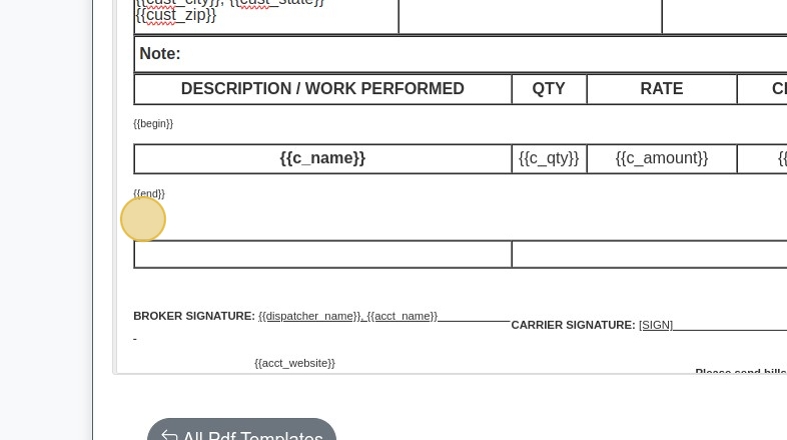
Tip: In order to remove any unnecessary space before and after your looping/repeating rows, make sure the[[{{begin}}]] and [[{{end}}]] tags are as close to the top and bottom of the table as possible.
6. We can adjust the size of the text by clicking on "Size" after highlighting the text we'd like to resize.
Click "20"
Click "{{stop_type}}"
Click "{{c_total}}"
Press [[ctrl]] + [[b]]
Click "{{c_total}}"

7. We can also delete rows we don't need/want anymore.
Right-click "[[stop_type]]"
Click "Delete Rows"
Right-click "[[stop_namestop_addr1stop_addr2stop_city_state_zip]] [[stop_phone]] [[stop_phone_ext]]"
Click "Delete Rows"
Right-click "{{stop_type}} Note: {{stop_note}}"
Click "Delete Rows"

8. If you'd like to split one cell into to two on the same row, you can just do the following:
Right-click "Notes: [[acct_confirmation_note]]"
Click "Split Cell Vertically"
See the result!

9. Then, adjust the size of the cells using the following steps:
Click "Cell Properties"
Select the "percent" option.
Click the "Width" field.
Type "80"
Select the "Right" option.
Click "◢OKCancel"

10. Finally, let's add the billing address at the bottom and a note about paying on time.

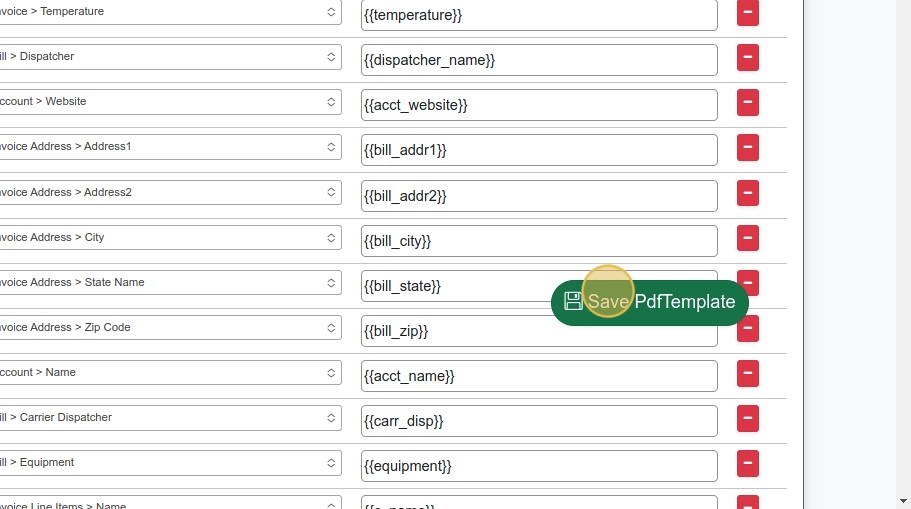
11. Click "Save". All Done!
Related Articles
Creating a PDF Template (Part 1)
Creating a PDF Template (Part 1) Starting with a copy of a Rate Con Template, Create an Invoice Template by making changes the the former. 1. Navigate to https://dieseltms.com/pdf_templates and open the PDF Template you'd like to work with. (Or copy ...Creating a New Customer with Contacts and Locations
Creating a New Customer with Contacts and Locations 1. Navigate to https://dieseltms.com/home/index 2. Click "Customers" 3. Click "New" 4. Click the "Company" field. 5. Type "Test Customer 3" 6. Click here. 7. Click "Save" 8. Click "Contacts (1)" 9. ...Creating a New Carrier Profile and Insurance Details
Creating a New Carrier Profile and Insurance Details 1. Navigate to https://dieseltms.com/carriers/new 2. Click the "Dba Name" field. 3. Click the "Company" field. 4. Type "Best Carrier, LLC" 5. Click the "MC #" field. 6. Type "456789 [[tab]] 987654" ...Sending, Receiving, and Signing a Signature Request / Onboard
Sending, Receiving, and Signing a Signature Request / Onboard 1. Navigate to https://dieseltms.com 2. Click "Log In" 3. Click "Onboards" 4. Click "New" 5. Select the "Rate Confirmation" option. Tip: You can design your own PDF Templates to use when ...