Searching the Load/Dispatch/Quote List
Searching the Load/Dispatch/Quote List
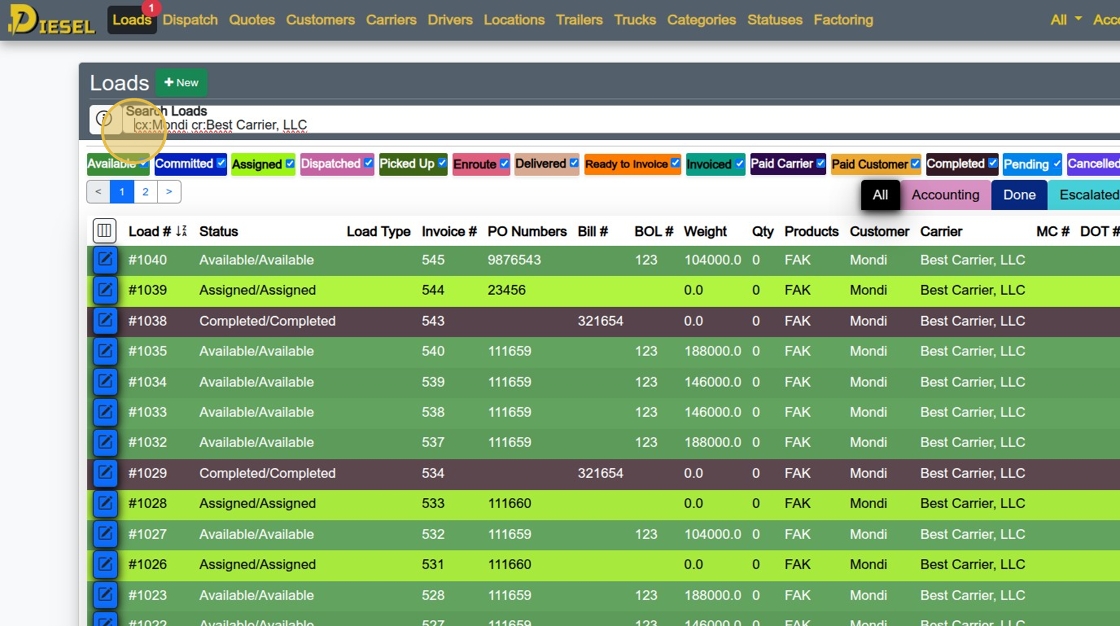
1. Navigate to https://dieseltms.com/loads
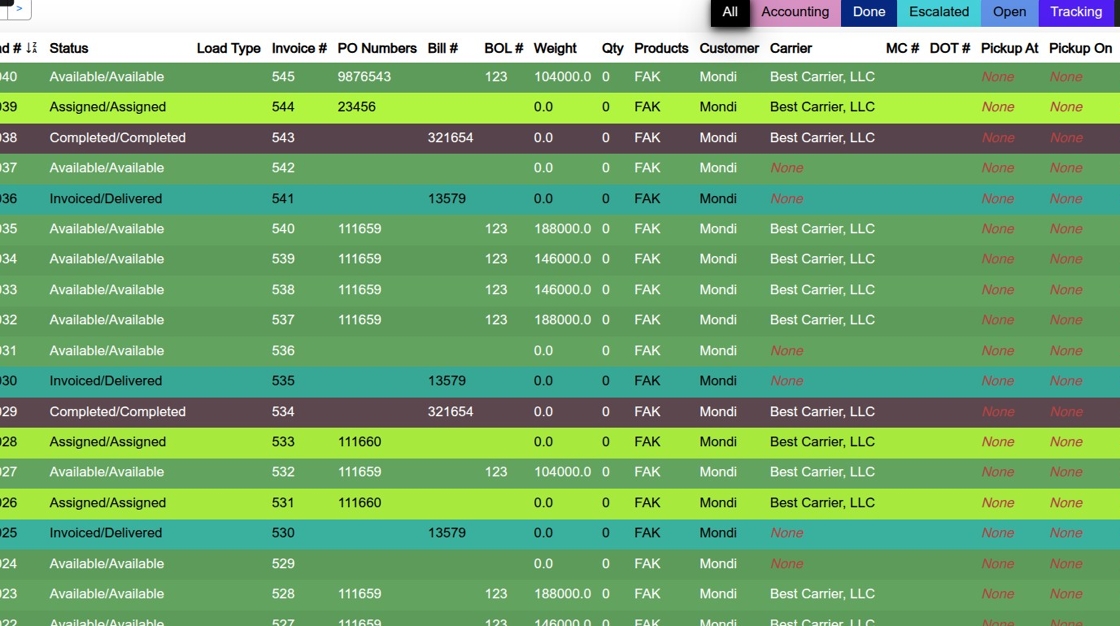
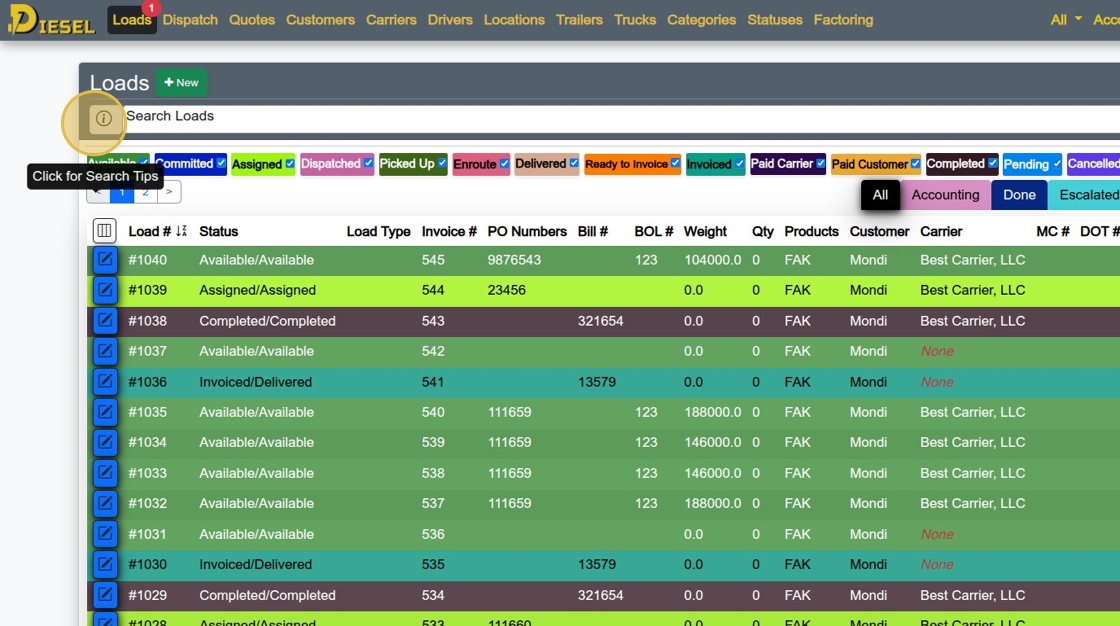
2. Click here to see dozens of examples of how to use the Search feature.
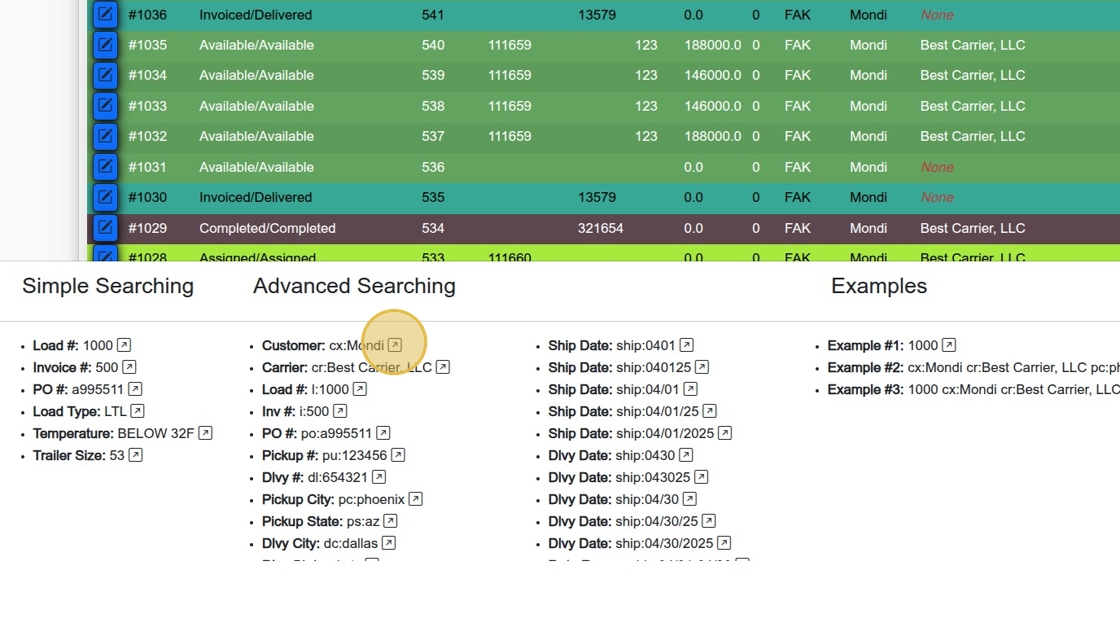
3. Clicking any of the examples will insert the value into the Search Field
4. You can combine multiple search terms together for more complex searches.
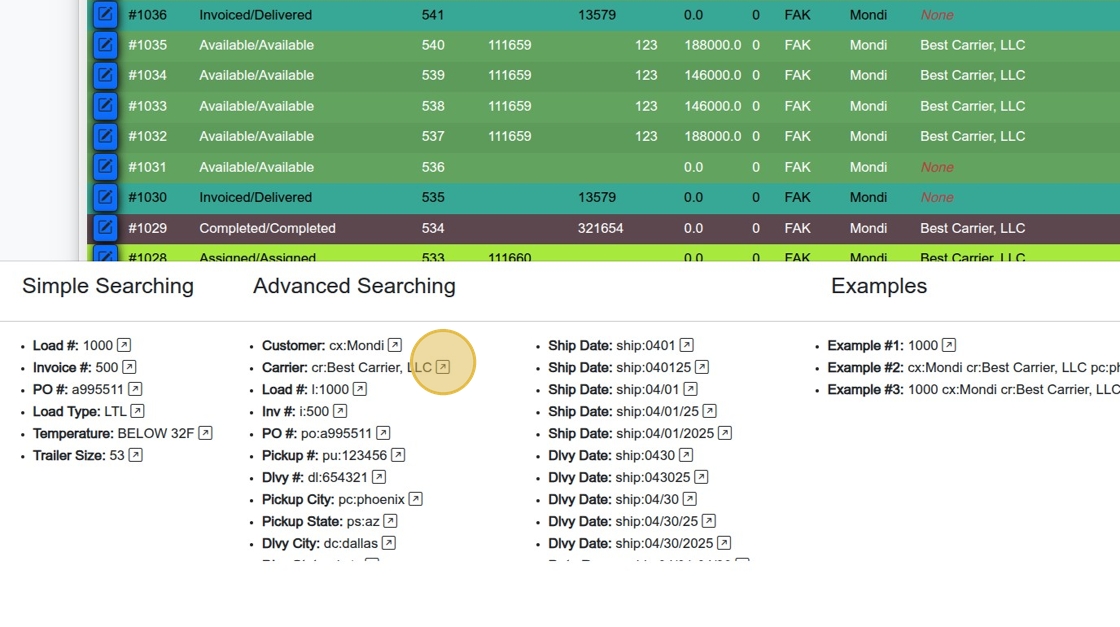
5. Any value at the beginning of the search field will be treated as a "Search All Searchable Fields"
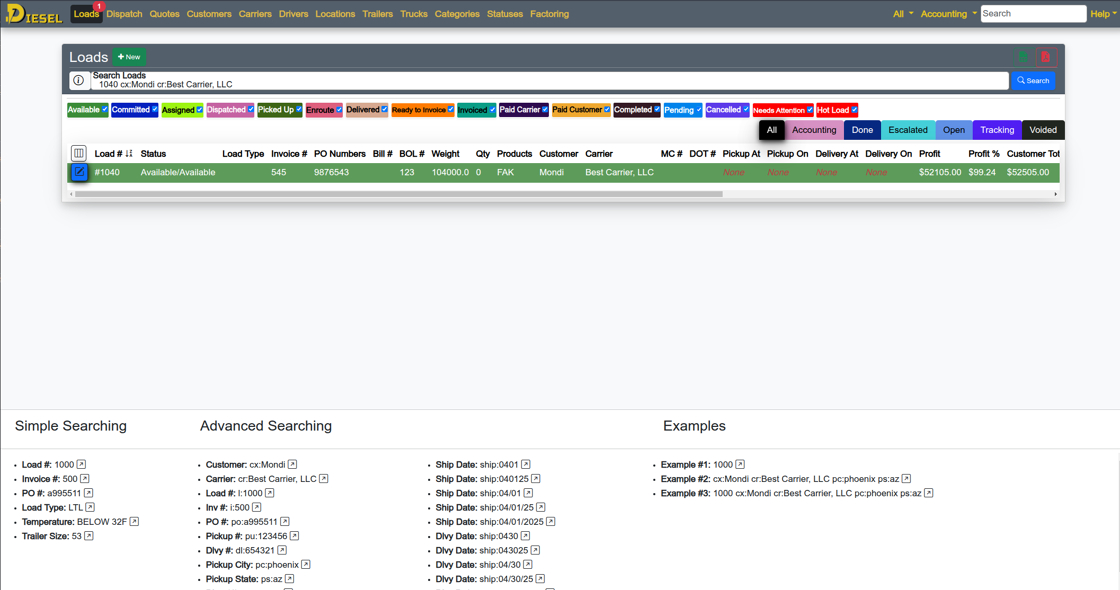
6. In this example, typing "1040" will leave only one result.
Related Articles
Set Up Load/Dispatch/Quote List
Set Up Load/Dispatch/Quote List 1. Navigate to https://dieseltms.com/home/index 2. Click "Loads" 3. Observe that there are Statuses (with Checkboxes) and Categories (the tabs below) 4. You can select or deselect any status or category. 5. Let's add a ...How to Perform Complex Searches
Searching the Load/Dispatch/Quote List 1. Navigate to https://dieseltms.com/loads 2. Click here to see dozens of examples of how to use the Search feature. 3. Clicking any of the examples will insert the value into the Search Field 4. You can combine ...Calculate Miles on a Load / Quote
Calculate Miles on a Load / Quote 1. Open the Load you would want to add miles to. 2. Ensure the Load has at minimum a Shipper Address, a Receiver Address, and the Load has accurate Weights & Dims. (As shown below) 3. Click "Miles". The Load will be ...Building a Load & Sending a Rate Con
Building a Load & Sending a Rate Con This guide offers a straightforward, step-by-step approach to building a load and sending a rate confirmation using Diesel TMS. 1. Navigate to https://dieseltms.com 2. Click "Loads" 3. Click "New" 4. Select a ...Sending, Receiving, and Signing a Signature Request / Onboard
Sending, Receiving, and Signing a Signature Request / Onboard 1. Navigate to https://dieseltms.com 2. Click "Log In" 3. Click "Onboards" 4. Click "New" 5. Select the "Rate Confirmation" option. Tip: You can design your own PDF Templates to use when ...