Importing Data in DieselTMS
Importing Data in DieselTMS
1. Navigate to https://dieseltms.com
2. Click "Log In"
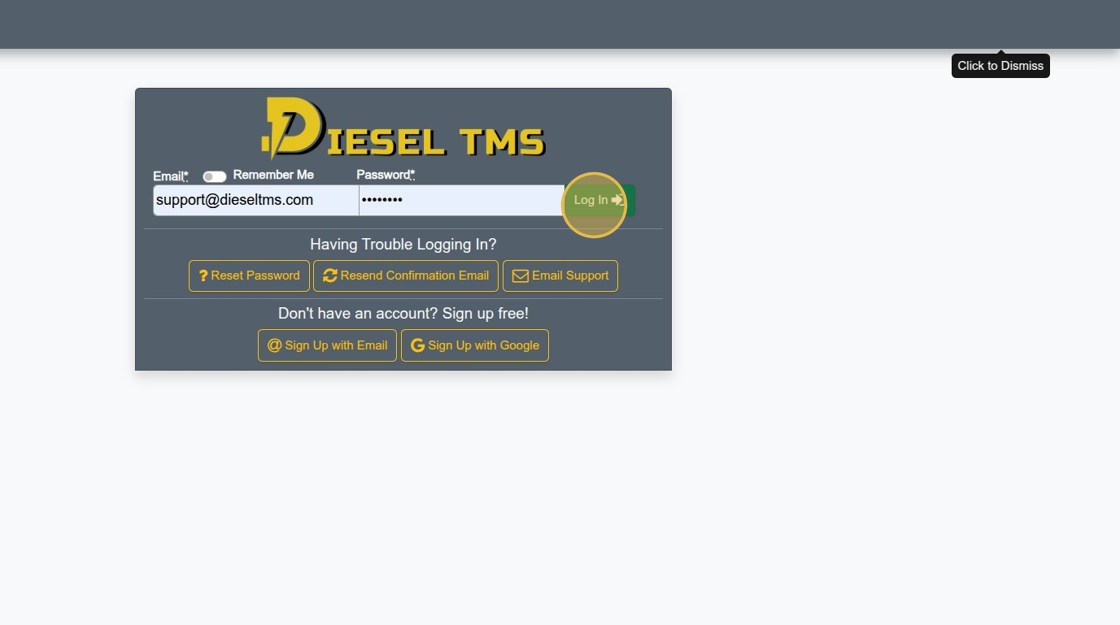
3. Click "Uploads"
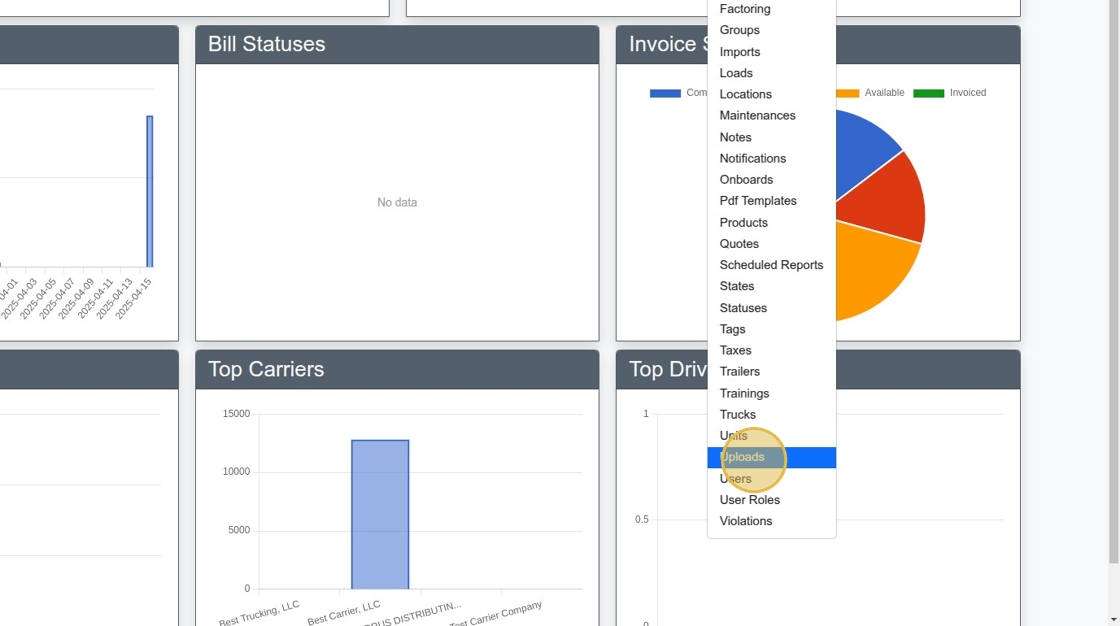
4. Click "New"
5. Click "Create Upload"
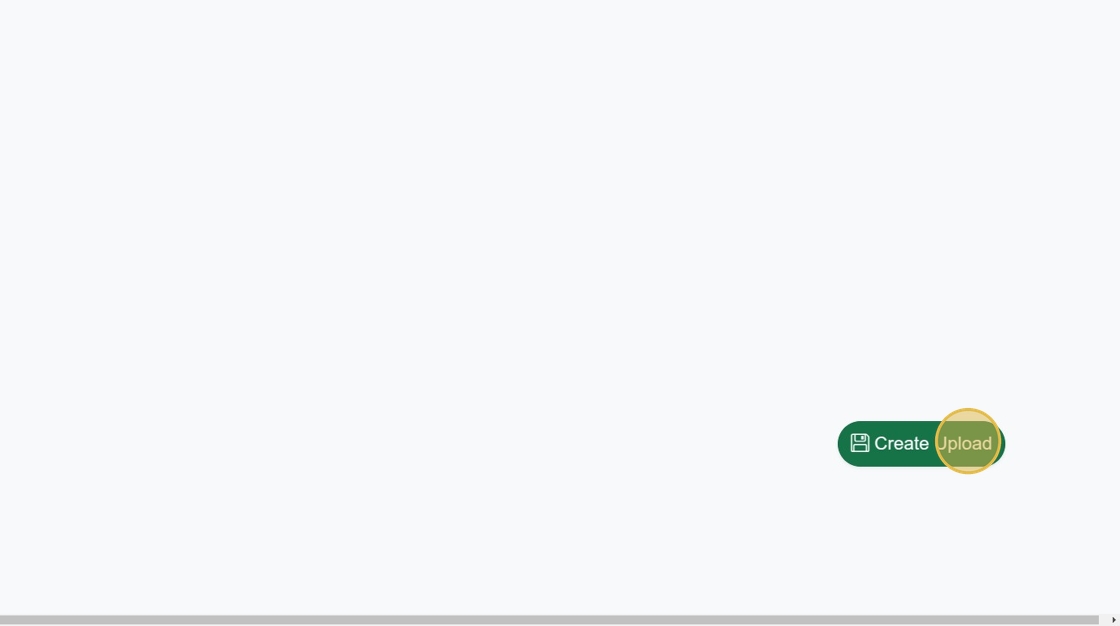
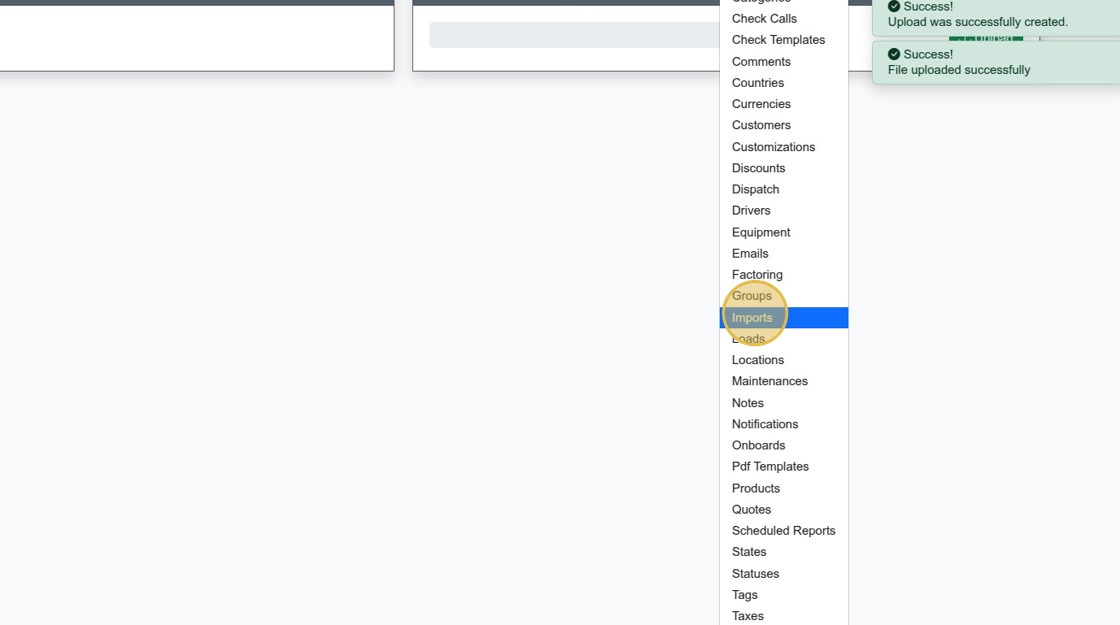
6. Click "Imports"
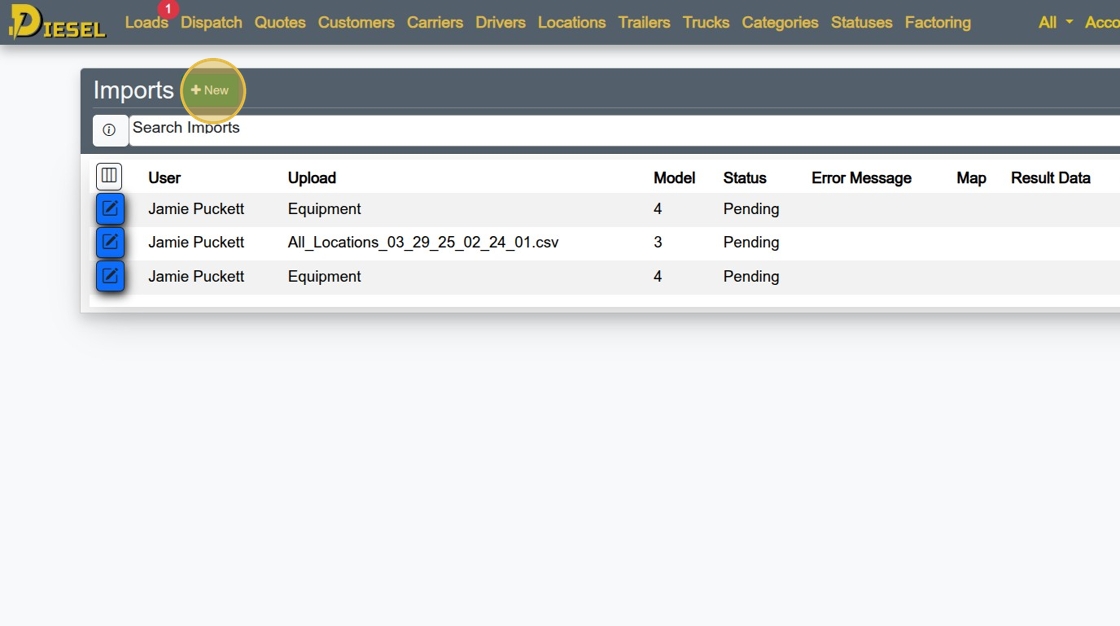
7. Click "New"
8. Click the "Select a File" field.
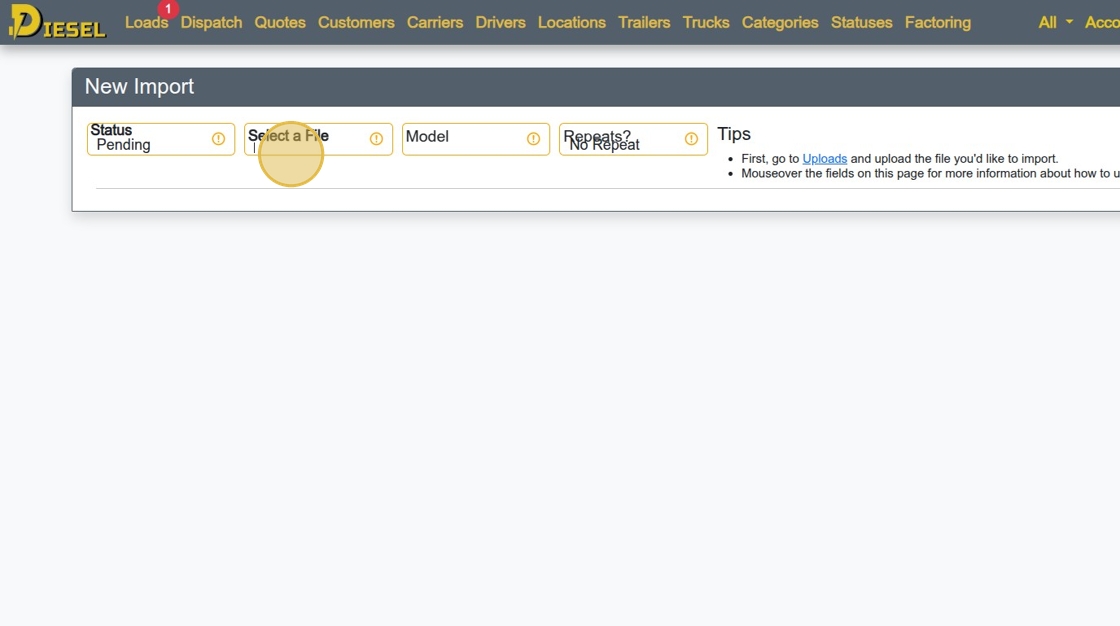
9. Type "equi"
10. Select the file you uploaded.
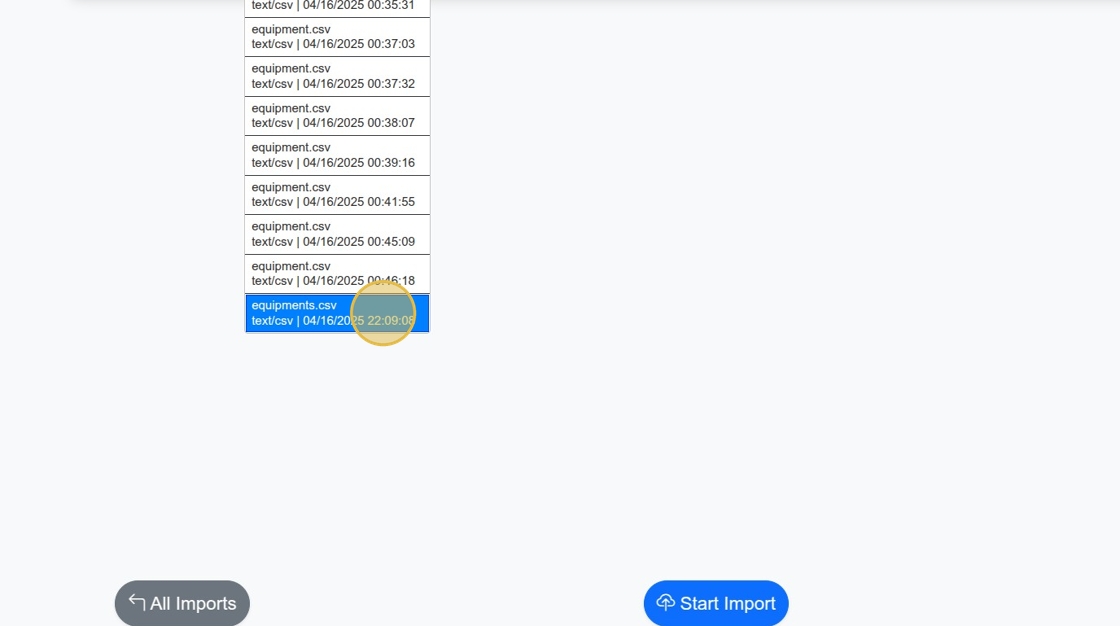
11. In the Target field, select what kind of data you'd like to Import.
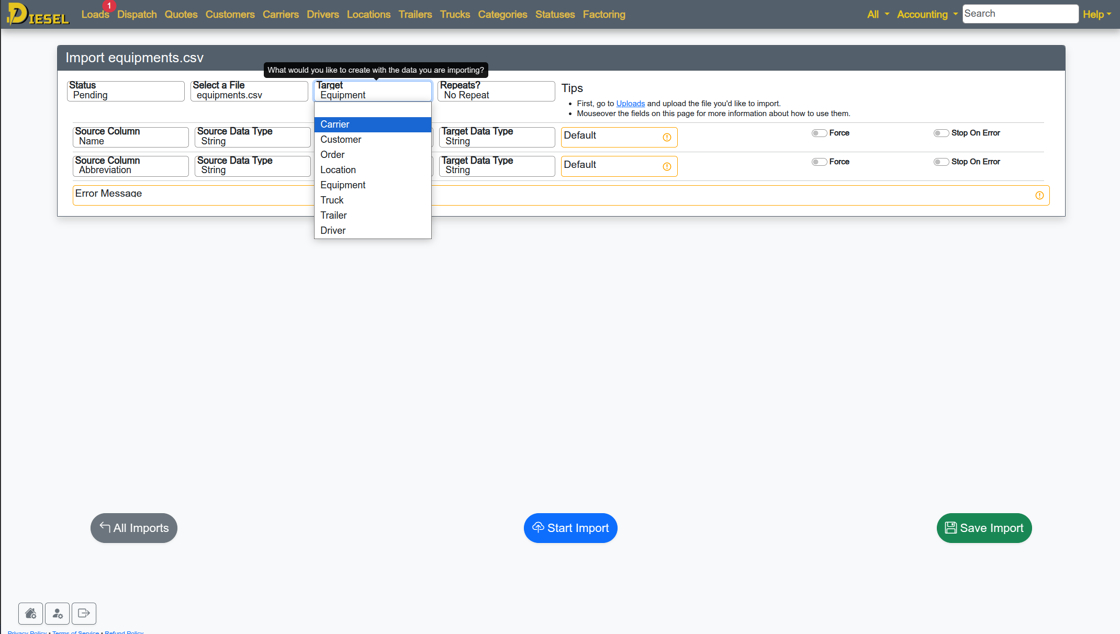
12. (Optional) You can choose whether or not you'd like to repeat the import. This might be useful when importing Loads, for example.
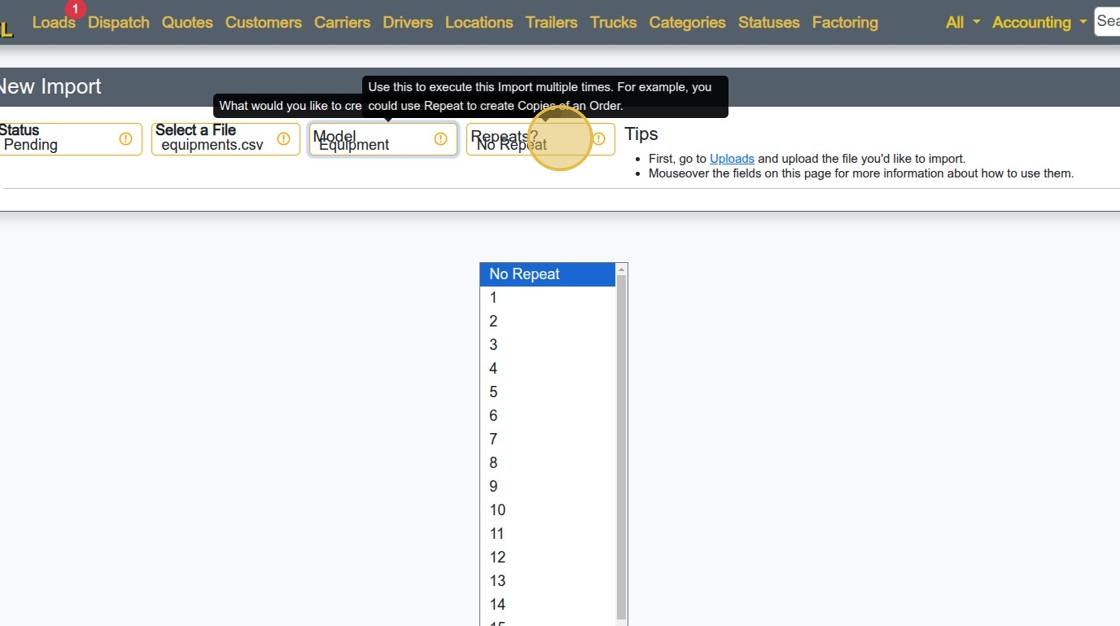
13. Click "Create Import". At this point, the system will attempt to map the columns automatically based on their name. Inspect the options for each column, and change anything that seems to be automatically mapping incorrectly. If you'd like to import a column twice (enter it in two places), you can duplicate the column on the file you are uploading.

14. Once you have configured the Import to your satisfaction, just click "Start Import"
15. You will see a message in the top right corner with the results of the import. Once the import is complete, open the List page corresponding with the Target.
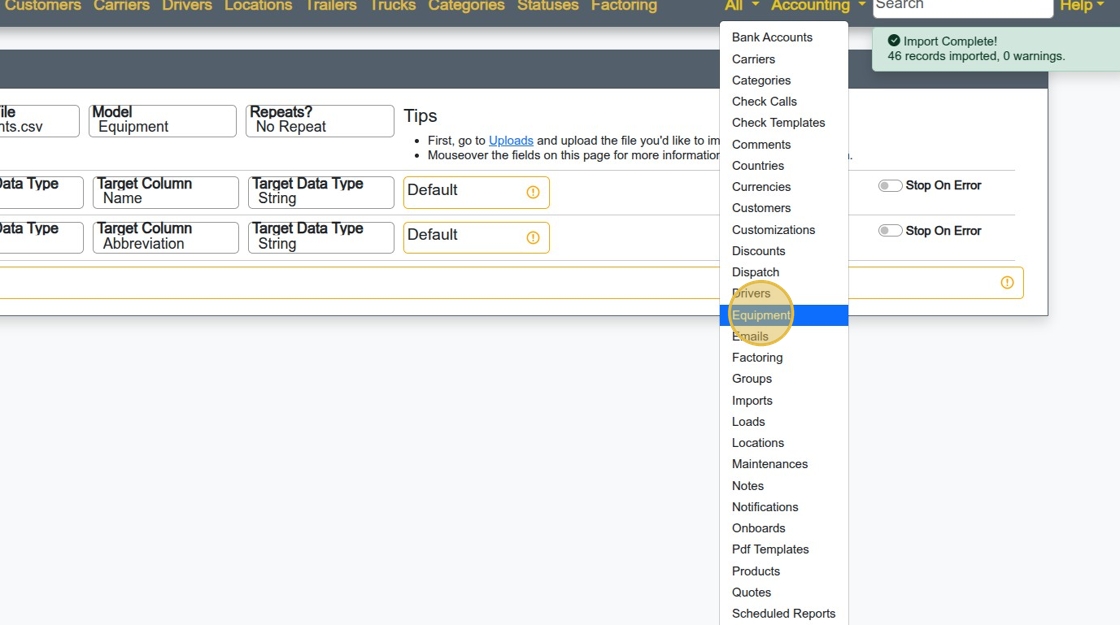
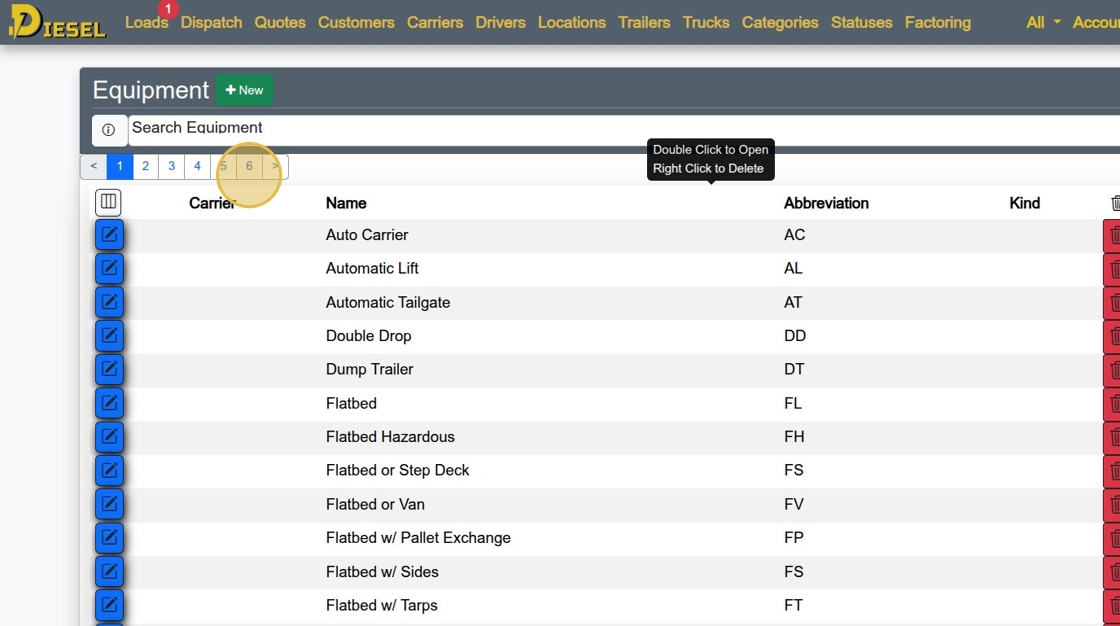
16. Inspect all of the imported entries to ensure they are correct. If not, simply discard them by clicking on the trash can icon. (Always the last Column in the List)
Related Articles
Delivering Free TMS Solutions with Data Privacy in Mind
Delivering Free TMS Solutions with Data Privacy in Mind At Diesel TMS, our mission is to empower freight brokers, carriers, and shippers with a robust, cloud-based transportation management system—completely free of charge. We achieve this by ...Creating a PDF Template (Part 1)
Creating a PDF Template (Part 1) Starting with a copy of a Rate Con Template, Create an Invoice Template by making changes the the former. 1. Navigate to https://dieseltms.com/pdf_templates and open the PDF Template you'd like to work with. (Or copy ...Introducing the One-Click 'Create Carrier' feature: Check it out!
Just a quick update to let everyone know about our latest tool. This one lets you create a Carrier from our Carrier Search tool (https://dieseltms.com/fmcsas) with one click! To use this feature, you must first have an account. (Sign up! It's free.) ...New 150+ Point Maintenance Checklist
Just wanted to let everyone know about a handy feature that makes it easy to record maintenance records for your trucks. One of the best features about it is that it saves a draft every time you make a change. So, if you have to take a call from a ...How to Perform Complex Searches
Searching the Load/Dispatch/Quote List 1. Navigate to https://dieseltms.com/loads 2. Click here to see dozens of examples of how to use the Search feature. 3. Clicking any of the examples will insert the value into the Search Field 4. You can combine ...